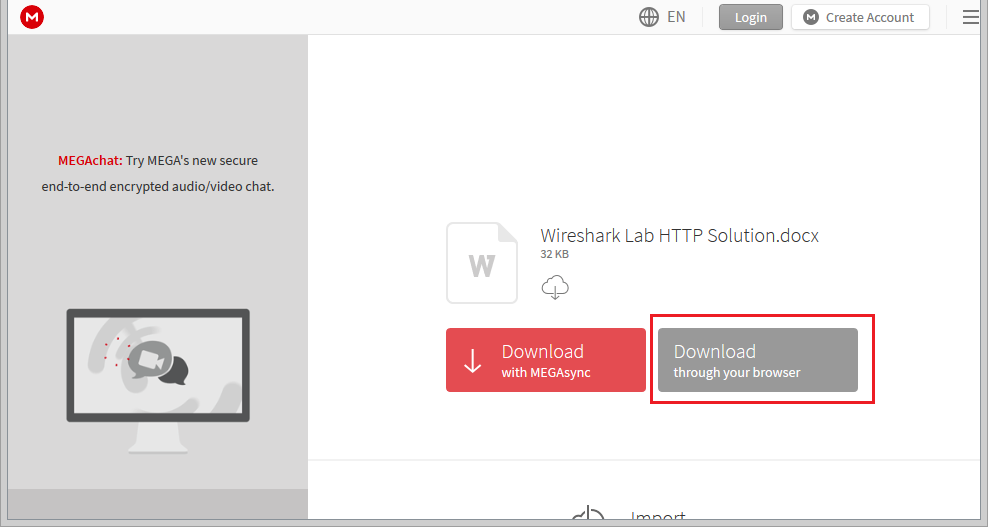
Link to download document down below! (Microsoft Word format)
1. What is the IP address and TCP port number used by the client computer (source) that is transferring the file to gaia.cs.umass.edu? To answer this question, it’s probably easiest to select an HTTP message and explore the details of the TCP packet used to carry this HTTP message, using the “details of the selected packet header window” (refer to Figure 2 in the “Getting Started with Wireshark” Lab if you’re uncertain about the Wireshark windows.
Answer:
The client IP address is 172.19.217.58, TCP port number is 50403
Screenshot
Figure 1: SYN packet
2. What is the IP address of gaia.cs.umass.edu? On what port number is it sending and receiving TCP segments for this connection?
Answer:
gaia.cs.umass.edu’s IP address is 128.119.245.12, port number is 80
Screenshot
Figure 2: SYN ACK packet
4. What is the sequence number of the TCP SYN segment that is used to initiate the TCP connection between the client computer and gaia.cs.umass.edu? What is it in the segment that identifies the segment as a SYN segment?
Answer: The sequence number of the TCP SYN segment is 0 since it is used to imitate the TCP connection between the client computer and gaia.cs.umass.edu. According to the screenshot below, in the Flags section, the SYN flag is set to 1 which indicates that this segment is a SYN segment.
Screenshot
Figure 3: SYN seq num + flag
5. What is the sequence number of the SYNACK segment sent by gaia.cs.umass.edu to the client computer in reply to the SYN? What is the value of the Acknowledgement field in the SYNACK segment? How did gaia.cs.umass.edu determine that value? What is it in the segment that identifies the segment as a SYNACK segment?
Answer: According to the screenshot below, the sequence number of the SYN_ACK segment sent by gaia.cs.umass.edu to the client computer in reply to the SYN is 0. The value of the acknowledgement field in the SYN_ACK segment is determined by the server gaia.cs.umass.edu. The server adds 1 to the initial sequence number of the SYN segment from the client computer. For this case, the initial sequence number of the SYN segment from the client computer is 0, thus the value of the acknowledgement field in the SYN_ACK segment is 1. A segment will be identified as a SYN_ACK segment if both SYN flag and ACKnowledgement flag in the segment are set to 1.
Screenshot
6. What is the sequence number of the TCP segment containing the HTTP POST command? Note that in order to find the POST command, you’ll need to dig into the packet content field at the bottom of the Wireshark window, looking for a segment with a “POST” within its DATA field.
Answer: The sequence number of the TCP segment containing the HTTP Post command is 1.
Screenshot
Figure 4: HTTP Post
7. Consider the TCP connection.
a. What are the sequence numbers of the first six segments in the TCP connection?
Answer: Sequence number for segment 1 is 1, sequence number for segment 2 is 1401.
Screenshot:
b. At what time was each segment sent?
Answer: 1.738554 s for segment 1 and 2.026161 s for segment 2.
Screenshot:
c. When was the ACK for each segment received?
Answer: ACK for segment 1 was received at 2.026105 s and ACK for segment 2 is received at 2.311435 s.
Screenshot:
d. Given the difference between when each TCP segment was sent, and when its acknowledgement was received, what is the RTT value for each of the six segments?
Answer:
RTT for segment 1 is 0.287551 seconds, RTT for segment 2 is 0.285274 seconds, RTT for segment 3 is 0.285261 seconds, RTT for segment 4 is 0.285369 seconds, RTT for segment 5 is 0.000176 seconds, RTT for segment 6 is 0.286297 seconds.
Segment
|
Packet Number
|
Sequence Number
|
Time Sent(s)
|
Time ACK received(s)
|
RTT(s)
|
1
|
38
|
1
|
1.738554
|
2.026105
|
0.287551
|
2
|
43
|
1401
|
2.026161
|
2.311435
|
0.285274
|
3
|
44
|
2801
|
2.026174
|
2.311435
|
0.285261
|
4
|
45
|
4201
|
2.026180
|
2.311549
|
0.285369
|
5
|
49
|
5601
|
2.311505
|
2.311681
|
0.000176
|
6
|
50
|
7001
|
2.311512
|
2.597809
|
0.286297
|
8. What is the length of each of the first six TCP segments?
Answer:
The length of each of the first 6 TCP segments is 1400 bytes.
Segment
|
Packet Number
|
Sequence Number
|
Length(bytes)
|
Time Sent(s)
|
Time ACK received(s)
|
RTT(s)
|
1
|
38
|
1
|
1400
|
1.738554
|
2.026105
|
0.287551
|
2
|
43
|
1401
|
1400
|
2.026161
|
2.311435
|
0.285274
|
3
|
44
|
2801
|
1400
|
2.026174
|
2.311435
|
0.285261
|
4
|
45
|
4201
|
1400
|
2.026180
|
2.311549
|
0.285369
|
5
|
49
|
5601
|
1400
|
2.311505
|
2.311681
|
0.000176
|
6
|
50
|
7001
|
1400
|
2.311512
|
2.597809
|
0.286297
|
Screenshot:
Figure 5: Segment 1 Length
Figure 6: Segment 2 Length
9. What is the minimum amount of available buffer space advertised at the received for the entire trace? Does the lack of receiver buffer space ever throttle the sender?
Answer:
The minimum amount of available buffer space advertised at the received is 17536 bytes.
Segment
|
Available Buffer Space Advertised At The Received
|
1
|
17536
|
2
|
20480
|
3
|
23424
|
4
|
26368
|
5
|
29312
|
6
|
32128
|
Screenshot:
Figure 7: Segment 1 Buffer
Figure 8: Segment 2 Buffer
10. Are there any retransmitted segments in the trace file? What did you check for (in the trace) in order to answer this question?
Answer:
No there is no retransmitted segments in the trace file. This can be explained by packets with same sequence number at different time is not found.
Screenshot:
11. How much data does the receiver typically acknowledge in an ACK? Can you identify cases where the receiver is ACKing every other received segment (see Table 3.2 on page 247 in the text).
Answer: According to the screenshot below, we can see that the ACK numbers increase in the sequence of 1401, 2801, 4201, and so on. The ACK numbers increases by 1400 each time, indicating that the receiver is acknowledging 1400 bytes.
Screenshot:
12. What is the throughput (bytes transferred per unit time) for the TCP connection? Explain how you calculated this value.
Answer:
Screenshot:
Figure 9: Time Send First Segment
Figure 10: Time Send Last Segment
13. Use the Time-Sequence-Graph(Stevens) plotting tool to view the sequence number versus time plot of segments being sent from the client to the gaia.cs.umass.edu server. Can you identify where TCP’s slow start phase begins and ends, and where congestion avoidance takes over? Comment on ways in which the measured data differs from the idealized behaviour of TCP that we’ve studied in the text.
Answer:
By observing the plot, we can see that the slow-start phase only lasts for first 1-1.5 second. Afterwards, it seems that the TCP session is always in congestion avoidance state. In this case, we do not observe the expected linear increase behaviour, i.e. the TCP transmit window does not grow linearly during this phase. In fact, it appears that the sender transmits packets in batches of 6. This does not seem to be caused by flow control since the receiver advertised window is significantly larger than 5 packets. The reason for this behaviour might be due to the fact that the HTTP server has enforced a rate-limit of some sort.
Screenshot:
Download Link:
How To Download:
Please disable any Ad Block software if any beforehand or this may not work properly.
1. Please wait for 5 seconds.
2. Click on "Skip Ad".
3. Click on "Download through your browser".